Thursday, August 5, 2021


 Webex Meetings

Our college has recently conducted an online workshop which was great and we had a wonderful time as a student-teacher how we should be mentally prepared in order to teach the kids and how to be responsible in troublesome situations were discussed during the session. The platform we used was CISCO WEBEX MEETING and for some of you might be knowing and some may not have any idea, it's for the second type of guys i am speaking about, in order to help you out i have shared the steps to organise a meeting, to be the host and keep working on it efficiently.
we have had a wonderful time on this platform with the students of 175 despite the audio and video was struggling with poor network and yet we managed it and learnt something interesting.

Cisco Webex Meetings makes hosting an online meeting easy. You can schedule a meeting in advance or start one right away. When it's time to meet, you can present and collaborate with your team as if you're in the same room.

Schedule a Meeting

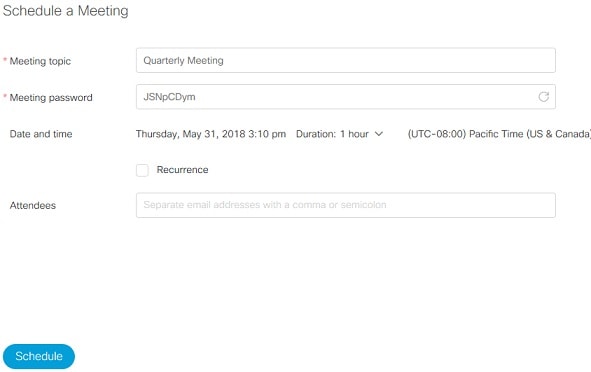
Sign in to your Webex site and select Schedule. Fill in the necessary meeting information and select Schedule.
Start a Meeting

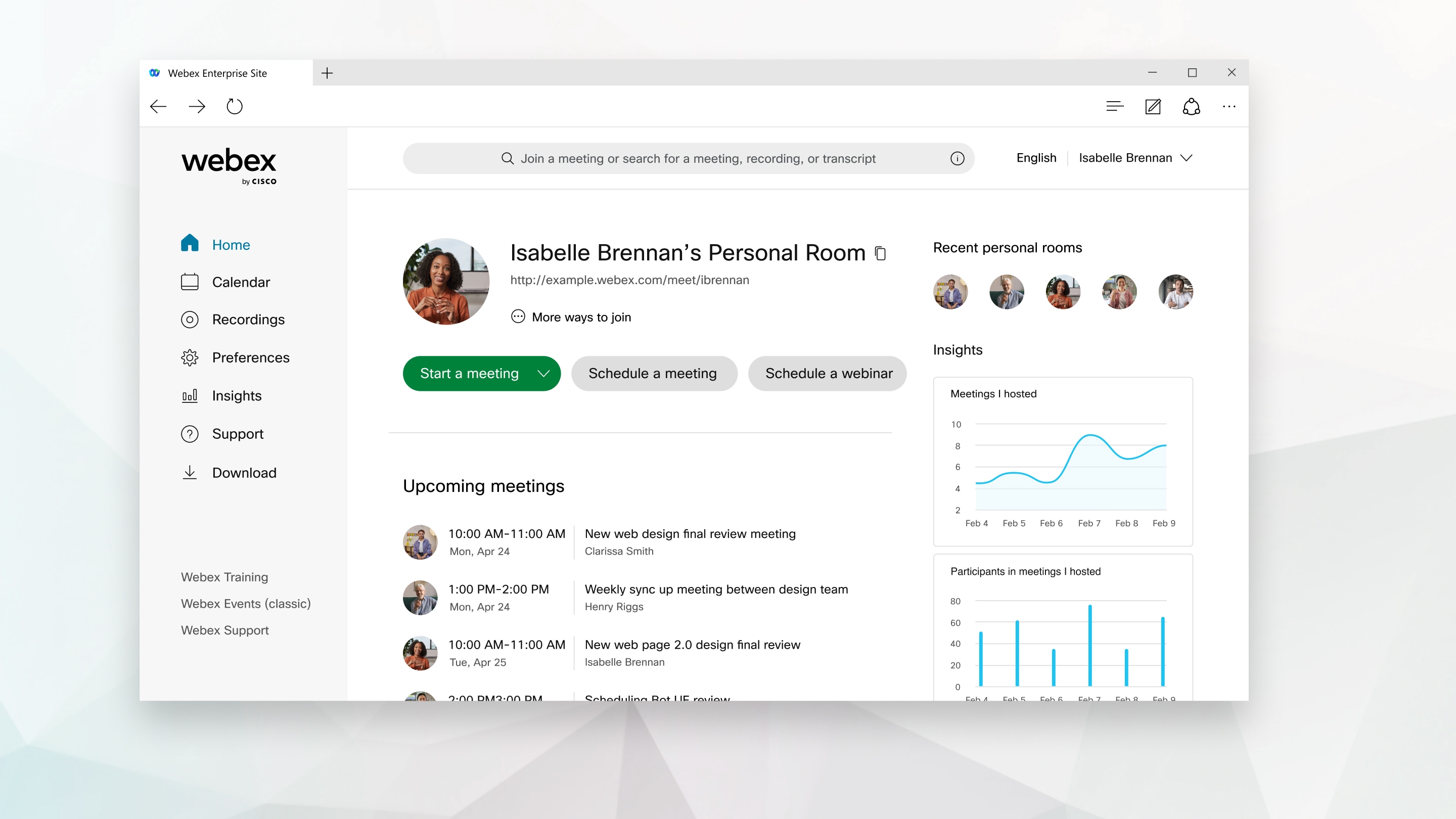
At the scheduled meeting time, sign in to your Webex site. From the home page, under Upcoming Meetings, locate your meeting, and then select Start.

If you don't see your meeting, you can select View all meetings to see more scheduled meetings.

You can also start a meeting in your Personal Room.

Connect Audio

Before you join or start a meeting you can choose the settings you use for audio in the meeting.

  1. Click the audio connection options in the Webex Meetings app.
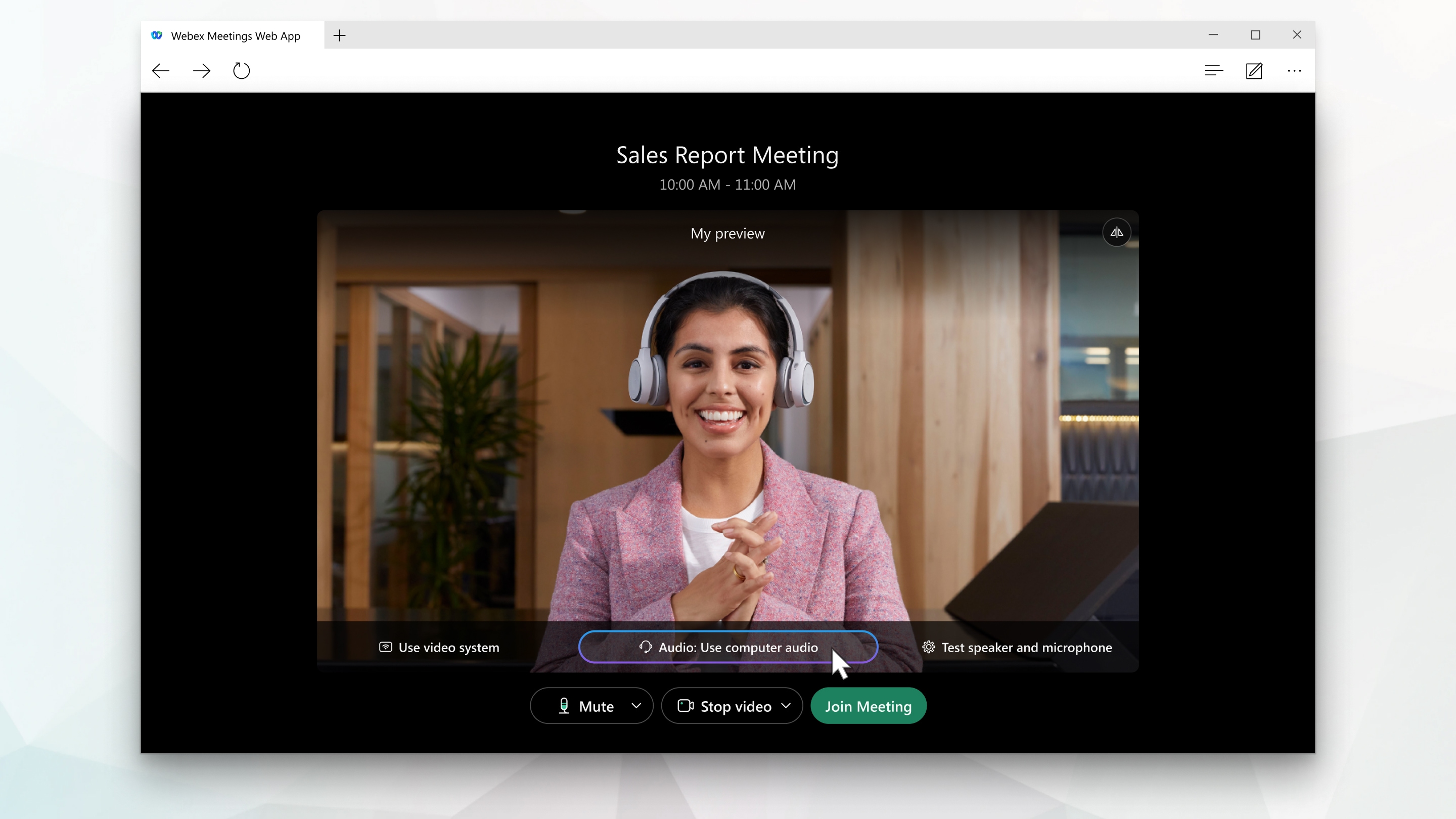
  2. Choose how you want to hear the audio in the meeting:
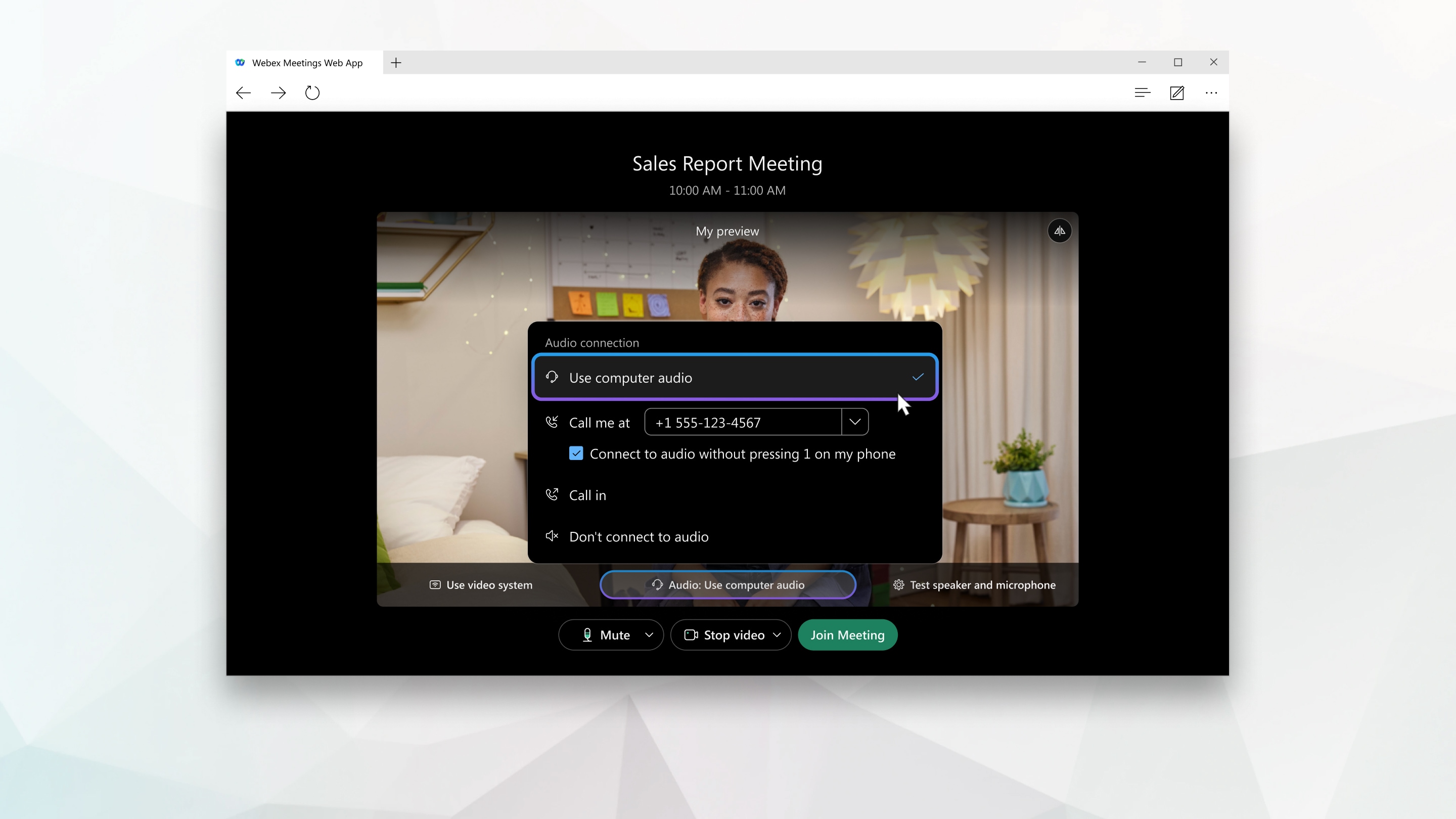
    • Use computer audio—Use your computer with a headset or speakers. This is the default audio connection type.

      You can change your headset, speakers, and microphone.

    • Call me—Enter or select the work or home phone number that you'd like the meeting to call.

    • Call in—Dial in from your phone when the meeting starts. A list of global call-in numbers is available after you join the meeting.

    • Don't connect to audio—You won't hear any audio in the meeting through your computer or phone. Use this option if you're in the meeting room but want to use your computer to share content in the meeting.

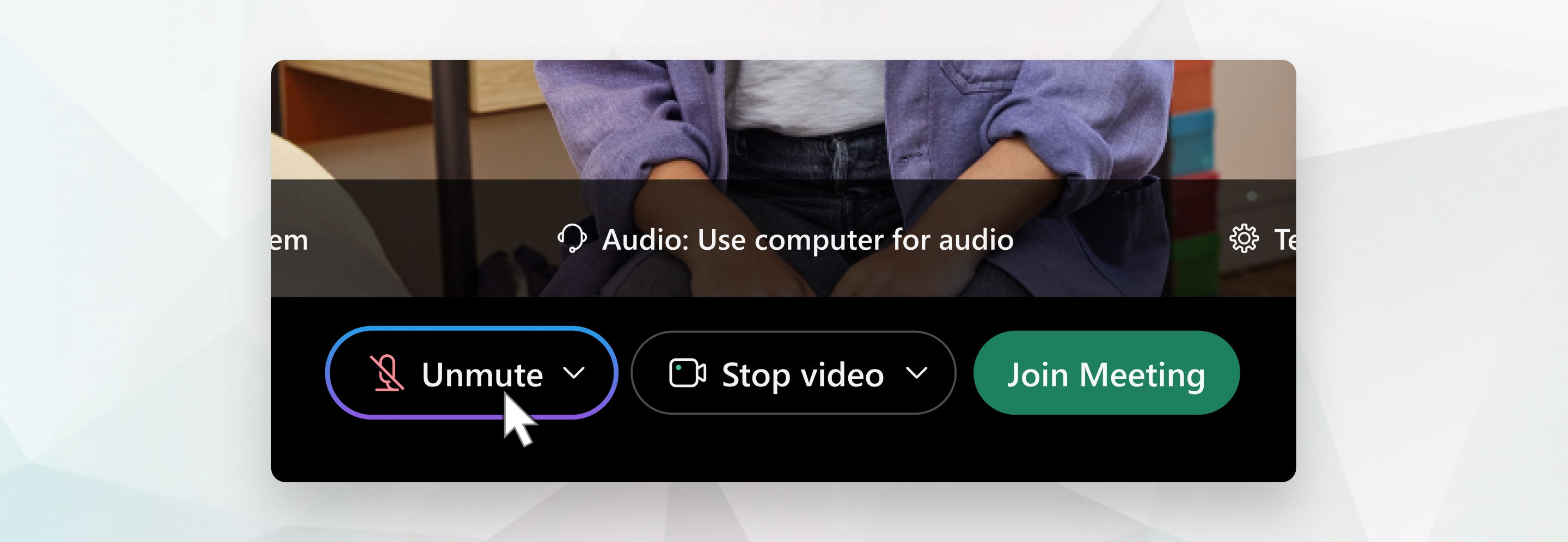
  3. If you want to join the meeting with your audio muted, click Mute Mute.

    You'll see Unmute when your microphone is muted. Click UnmuteUnmute when you want to speak in the meeting.
  4. Start Your Video

    Before you join or start a meeting you can choose the settings you use for video in the meeting.

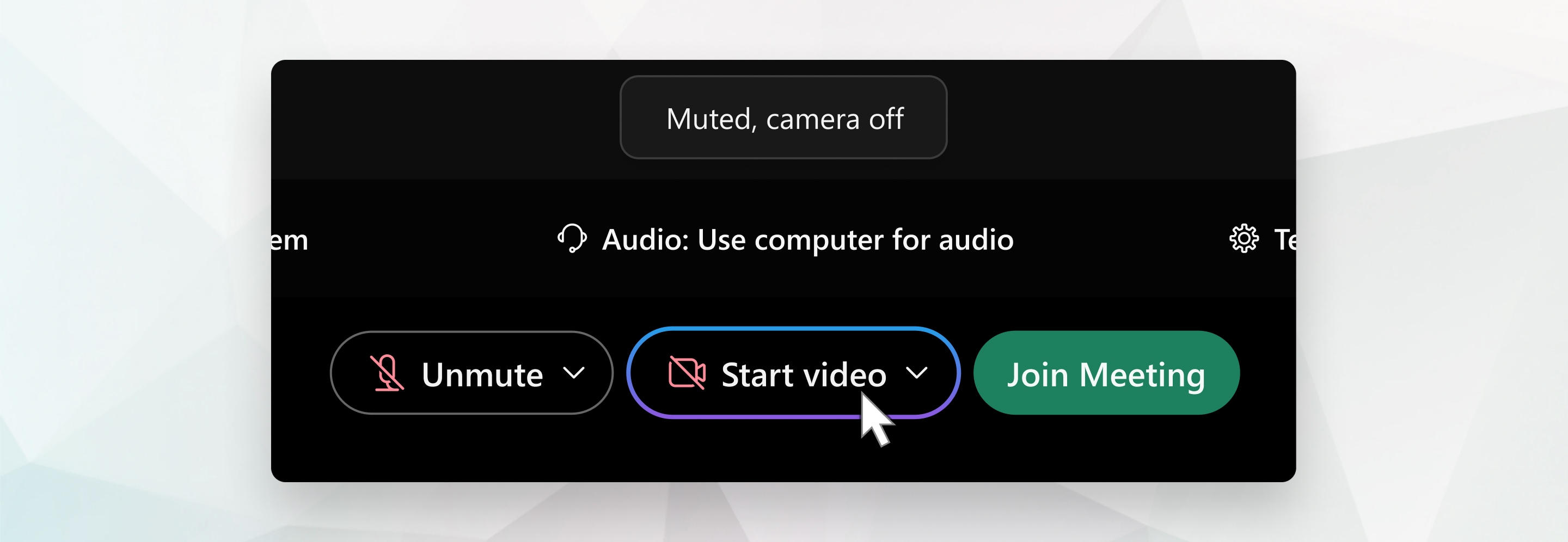
    1. If you want to join the meeting with your video turned off, click Stop video Stop video.

      You'll see Start video when your video is turned off. Click Start video Start video when you want to show your video.
    2. By default, your self-view video shows in mirror view. You can turn off mirror view if you want to see yourself in your self-view video the same way that other meeting participants see you.

      If you're happy with the audio and video settings that you chose for this meeting, you can save them for your next meeting.

    3. If you want added privacy or to limit possible distractions from your video, you can use a virtual background. Click Change background, and then choose to blur or replace your background.

    To join the meeting from a compatible video device, connect to a device.

    Share Content

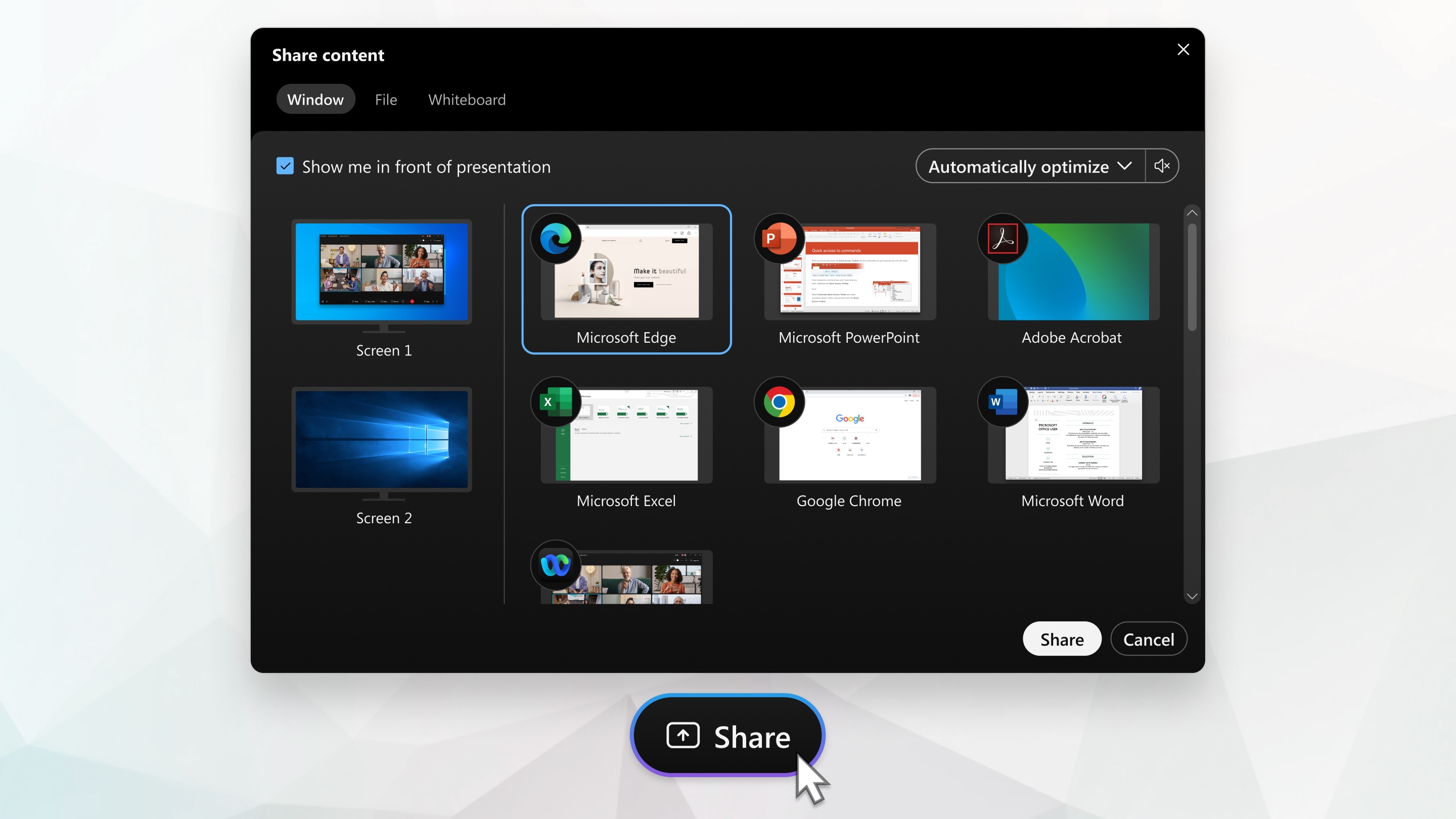
    To share content during a meeting, from the meeting control panel, select Share Share.


    Go to the Share menu for more sharing options.

    Record a Meeting

    Your meetings are important. If your whole team can't be there, or if you want to remember what was said, record your meeting to share later. The recording includes the audio, video, and presentation.

    While in your meeting, click Record Record, and then Record to record right away. You and your participants see a red icon at the top right of your window when recording is in process.

    When the meeting ends, you can find your recording on the Recordings > My Recorded Meetings page of your Webex site. If you recorded in the cloud, when the meeting ends, you receive an email with the recording link. Depending on file size and bandwidth, it can take up to 24 hours to receive your recording.

    High-Quality Video-Supported Cameras

    Most PC-compatible cameras should work with Webex.


10 Educational Websites for English Students

 Below are some valuable resources for ELL and ESL teachers. With these resources, you can find great ways to communicate more effectively, explore lessons, and be a great ELL teacher.


Check out this lexicon that offers images demonstrating the true meaning of the word, making it easier for English language learners to understand.
On this website, you’ll find quizzes, word games, puzzles, and a random sentence generator to help students better grasp English as a second language.
Bab.la is a really fun site for ELL learners, with reference tools like a dictionary and vocabulary, supplemented with quizzes, games, and a community forum.
On this site, you’ll find free English videos for both students and teachers.
 Okanagan College’s resource offers 13 different unit lessons for learning and teaching English pronunciation.
In this website from the BBC, students can find help with grammar, vocabulary, and pronunciation, with plenty of references to current events. Plus, you’ll find a special section for ELL teachers.
ESL Gold is, no joke, golden, with seemingly endless learning resources for English. Students can practice pronunciation, find a book to study, and even talk to someone in English on this site. Plus, teachers can find a job, search for textbooks, discover games, and so much more.
 Check out this free site for learning English, with loads of videos from real English speakers, plus quizzes and community support.
In this online library, students can get access to a huge collection of English texts and scripted recordings.
An awesome resource to use for simple translations, Google Translate can help your students see how its done and better understand translations between two or more languages.


 Direct your students to this ESL cyber listening lab with study guides, quizzes, and even teacher features.
This online tool is designed to help jumpstart students’ vocabulary skills, with more than 90 vocabulary lessons, and the option to create lessons of your own.

Wordsteps: Wordsteps makes it easy for students to build their own vocabulary collection, and even access their vocabulary through a mobile device for English language learning on the go.

Utah Education Network English Language Learner Resources:
 Check out this list of great resources for ELL, with teaching ideas, forums, and even news and research.
 Specially designed for English language teachers, One Stop English has a monthly topics series, news lessons, and even an app for on the go ELL teaching.
This ingenious tool allows ELL teachers to effectively communicate with non-English speaking parents. You’ll be able to quickly make and customize notes that you can translate and send home to parents, effectively communicating information about field trips, conduct, homework, and more.
 A great site for ELL teachers, ESL Party Land has lesson plans, strategies, worksheets, flashcards, quizzes, games, and even vocabulary resources to help you be a better ELL teacher.
 Check out this collection of royalty-free, language-neutral clip art designed to be used for foreign language instruction.
Thousands of teacher contributions can be found on this site full of quizzes, exercises, and tests for teaching English as a second language.
Using this online annotation tool, ELL teachers can write directly on images to explain their meaning to students.
A service of Oxford University Press, this learning resources bank for English language teaching has courses, titles, and interactive English reading tools.
 Encourage students to self-test with this website, offering free English tests, grammar exercises, and worksheets.


There are some other audio video resources i would like to recommend if you are really interested in visual experience
https://youtu.be/hFIGwwE1uAM

https://youtu.be/HXGs0-DZ-xg

https://youtu.be/Zz3w75jn07w

https://youtu.be/juKd26qkNAw

EPC Activity 7

 Play is one of the most important ways in which children learn. It underpins formal learning later in childhood, but also enables the individual child to develop their self-worth. 

In fact the right to play is deemed so fundamental to children’s well being, that it is enshrined by the UN as a universal children’s right.

It strengthens powers of concentration, essential for a successful future in the classroom, and underpins everything from learning social interactions and norms, to the beginnings of scientific thinking.

Here, I have listed some of the activities that the child develop during the age of five.

https://drive.google.com/file/d/1kKPGZ24jP01LtpQhJ2iZVmId6oX8fWUw/view?usp=sharing

Student's Portfolio

School History:   Madras Christian College Higher Secondary School, Chetpet, Chennai-31. Founding:           MCC School has its roots in a s...